I get an error message saying "Unable to load icon" when opening the software, and the program's features don't load.
The Issue: Running the PDG GOLD application before it is installed causes the program to run from the disk image. Ejecting the disk image breaks all necessary links to run the extra features in the program.
Affected Products:
Operating Systems: Mac OS X 10.5 (Leopard) Mac OS X 10.6 (Snow Leopard)
Solution 1:
Solution for Operating Systems: Mac OS X 10.5 (Leopard) Mac OS X 10.6 (Snow Leopard)
Deactivate, uninstall, and then reinstall the program, making sure to copy the PDG GOLD application to your hard drive before running the program.
Deactivate PDG NCO GOLD
From the main menu, select File, Deactivate.
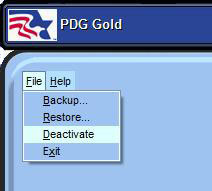
The deactivation process is identical to the activation procedure, with the option to deactivate automatically (if you have an internet connection) or manually (over the phone or on our website from a different computer).
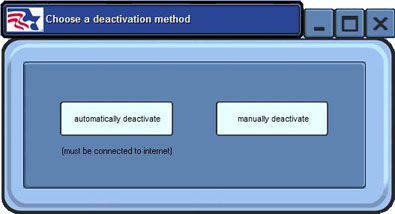
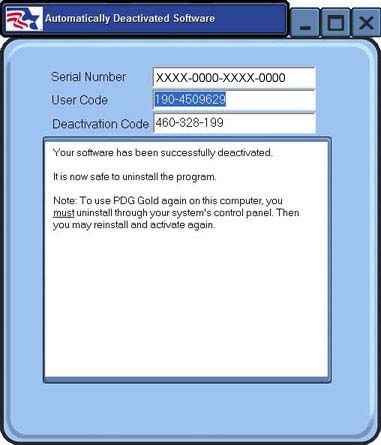
If you have an internet connection, select Automatically Deactivate to submit your deactivation information. No further action is required.
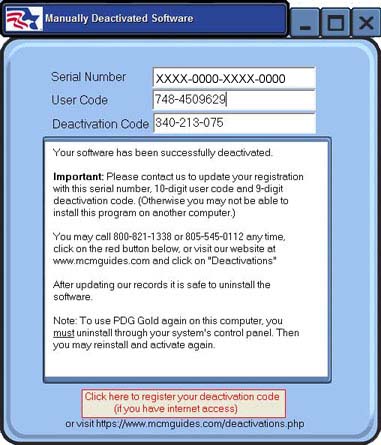
If you do not have an internet connection from the computer, select Manually Deactivate. Then call us or go to http://mcmguides.com/deactivations.php from a computer with an internet connection to submit the deactivation information that appears on the Manually Deactivate screen.
Uninstall PDG NCO GOLD
Open a Finder window and navigate to the Applications folder
If you see the PDG NCO GOLD applicaton icon, drag it to the trash
Navigate to Macintosh HD: Users: username: Library: Application Support
If you see the PDG NCO GOLD folder, drag it to the trash
Reinstall PDG NCO GOLD
Double-click the downloaded PDGSetup.dmg file
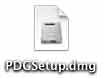 to mount the disk image (If the PDG NCO GOLD installation window opens, skip to step 3)
If the PDG NCO GOLD installation window doesn't automatically open, double-click the mounted disk icon
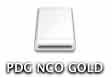 that appears on your desktop
When the window appears, drag this PDG NCO GOLD icon into the Applications Folder icon
NOTE: Do NOT just double-click the PDG NCO GOLD icon.
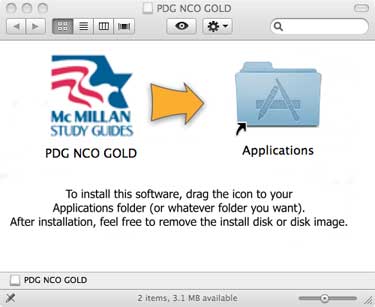
The PDG NCO GOLD Application package will install to your Applications folder
To create a shortcut to PDG NCO GOLD on your dock, open your Applications folder, then click and drag PDG NCO GOLD to the dock (wait until the other program icons move out of the way before you drop the PDG NCO GOLD icon onto the dock)
Close the installation window
Double-click the PDG NCO GOLD icon from your dock or your Applications folder to start the program
Follow the on-screen prompts to activate the program
Solution 2:
Solution for Operating Systems: Mac OS X 10.5 (Leopard) Mac OS X 10.6 (Snow Leopard)
Deactivate, uninstall, and then reinstall the program, making sure to copy the PDG SNCO GOLD application to your hard drive before running the program.
Deactivate PDG SNCO GOLD
From the main menu, select File, Deactivate.
The deactivation process is identical to the activation procedure, with the option to deactivate automatically (if you have an internet connection) or manually (over the phone or on our website from a different computer).
If you have an internet connection, select Automatically Deactivate to submit your deactivation information. No further action is required.
If you do not have an internet connection from the computer, select Manually Deactivate. Then call us or go to http://mcmguides.com/deactivations.php from a computer with an internet connection to submit the deactivation information that appears on the Manually Deactivate screen.
Uninstall PDG SNCO GOLD
Open a Finder window and navigate to the Applications folder
If you see the PDG SNCO GOLD applicaton icon, drag it to the trash
Navigate to Macintosh HD: Users: username: Library: Application Support
If you see the PDG SNCO GOLD folder, drag it to the trash
Reinstall PDG SNCO GOLD
Double-click the downloaded PDGSetup.dmg file
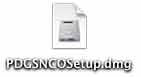 to mount the disk image (If the PDG SNCO GOLD installation window opens, skip to step 3)
If the PDG SNCO GOLD installation window doesn't automatically open, double-click the mounted disk icon
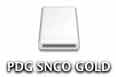 that appears on your desktop
When the window appears, drag this PDG SNCO GOLD icon into the Applications Folder icon
NOTE: Do NOT just double-click the PDG SNCO GOLD icon.
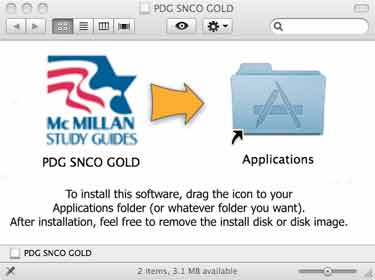
The PDG SNCO GOLD Application package will install to your Applications folder
To create a shortcut to PDG SNCO GOLD on your dock, open your Applications folder, then click and drag PDG SNCO GOLD to the dock (wait until the other program icons move out of the way before you drop the PDG SNCO GOLD icon onto the dock)
Close the installation window
Double-click the PDG SNCO GOLD icon from your dock or your Applications folder to start the program
Follow the on-screen prompts to activate the program