How do I deactivate my software?
The Issue: You may have your software activated on two computers concurrently. To install it on another computer, you must first free up an activation by deactivating it from a computer.
Affected Products: Master Your CDC 4.5
Operating Systems: Windows 7 Windows Vista Windows XP Mac OS X 10.5 (Leopard) Mac OS X 10.6 (Snow Leopard)
Solution 1:
Solution for Products: Master Your CDC 4.5
Solution for Operating Systems: Windows 7 Windows Vista Windows XP
Deactivate from the File menu before uninstalling your software or reformatting your hard drive.
We recommend deactivating your software if you no longer plan to use it on a computer.
From the main menu, select File, Deactivate.
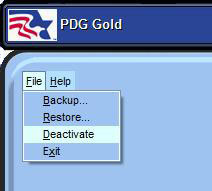
The deactivation process is identical to the activation procedure, with the option to deactivate automatically (if you have an internet connection) or manually (over the phone or on our website from a different computer).
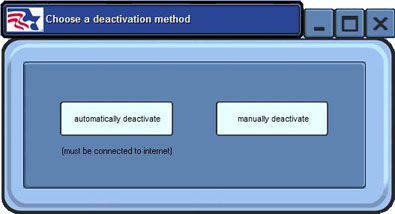
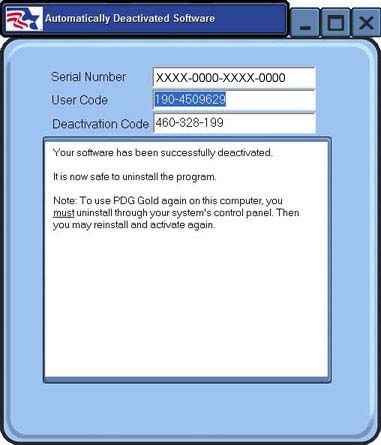
If you have an internet connection, select Automatically Deactivate to submit your deactivation information. No further action is required.
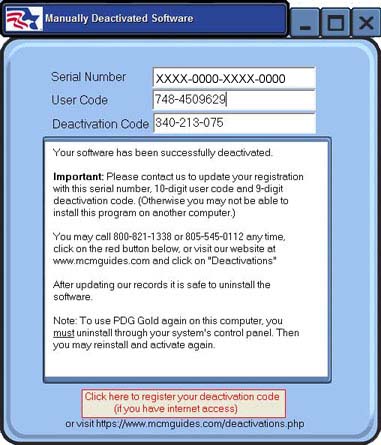
If you do not have an internet connection from the computer, select Manually Deactivate. Then call us or go to http://mcmguides.com/deactivations.php from a computer with an internet connection to submit the deactivation information that appears on the Manually Deactivate screen.
Completely uninstall the program using your system's Control Panel or the Uninstall feature under Start > All Programs > McM Studyware to complete the deactivation. Once you have deactivated your software it will make another activation available for a different computer.
Solution 2:
Solution for Operating Systems: Mac OS X 10.5 (Leopard) Mac OS X 10.6 (Snow Leopard)
Deactivate from the File menu before uninstalling your software or reformatting your hard drive.
We recommend deactivating your software if you no longer plan to use it on a computer.
From the main menu, select File, Deactivate.
The deactivation process is identical to the activation procedure, with the option to deactivate automatically (if you have an internet connection) or manually (over the phone or on our website from a different computer).
If you have an internet connection, select Automatically Deactivate to submit your deactivation information. No further action is required.
If you do not have an internet connection from the computer, select Manually Deactivate. Then call us or go to http://mcmguides.com/deactivations.php from a computer with an internet connection to submit the deactivation information that appears on the Manually Deactivate screen.
Completely uninstall the program to complete the deactivation (see How do I uninstall PDG GOLD from my Mac? for instructions). Once you have deactivated your software it will make another activation available for a different computer.